
APPOINTMENT HELP · INDEPENDENT GUIDE
Home Affairs appointment not working? Safe fixes for slots, OTP & login
Is your Home Affairs appointment not working, or are no appointment slots showing? Use this guide to identify the problem, recognise the current official route and choose the safest next step without sharing private details on an unofficial website.
Reviewed by the Home Affairs Guide editorial team · This is an independent guide, not a Department of Home Affairs website.
Why is my Home Affairs appointment booking not working?
The most common booking problems are no slots showing, a one-time code that does not arrive, a sign-in loop, or a page that will not load. Name the fault first, then start again from the official public page. A missing slot usually means slots are full or not released yet, and most sign-in loops are local, not account problems.
GUIDE STANDARD
Fix the problem before you book
This page helps you name the fault and find the right official starting point. Anything personal, accounts, identity, bookings, payments, tracking, happens only on the Department’s service.
No slots? Start here before you retry
You reach the booking page, but no appointment slots appear for your branch or date. This is the most common booking problem, and it usually means slots are full or not released yet, not that the system is broken.
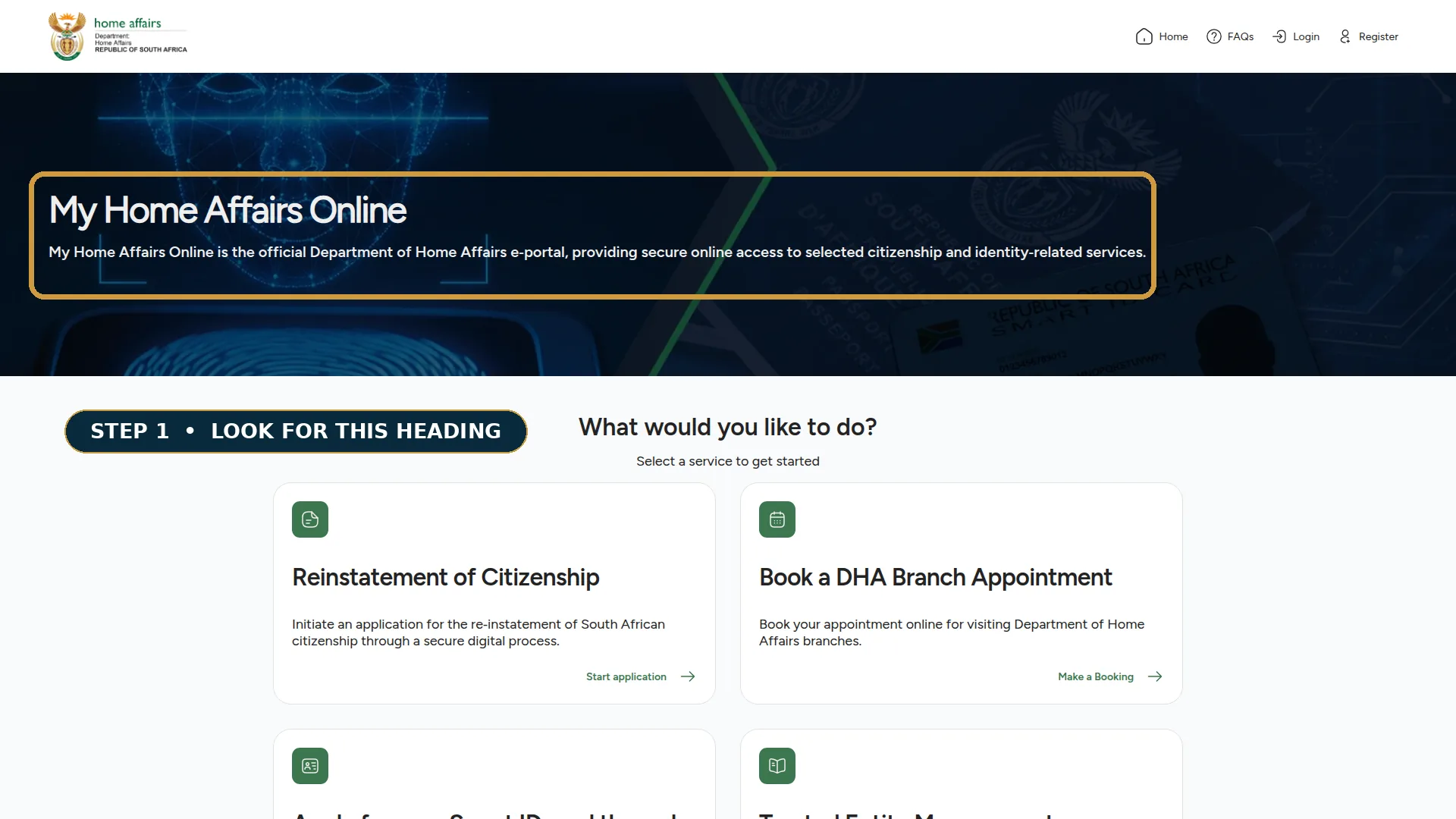
Exact public page to recognise: the amber outline and Step 1 label were added by this independent guide. The underlying screen and the page wording are from the live public Department page.
My Home Affairs Online public landing page
Waiting on a one-time code?
The official service sends a one-time code to verify you. If it does not arrive, do not keep requesting codes in a loop, pause, check the basics below, then try once more on the official page.

Start from the official public page: the amber outline was added by this independent guide. The underlying screen and the card wording are from the live public Department page.
Annotation refers only to the public booking card
Stuck in a sign-in loop?
You enter your details and land back on the sign-in screen, or the page keeps asking you to sign in again. Before you retry, clear the usual browser causes below, most sign-in loops are local, not account problems.
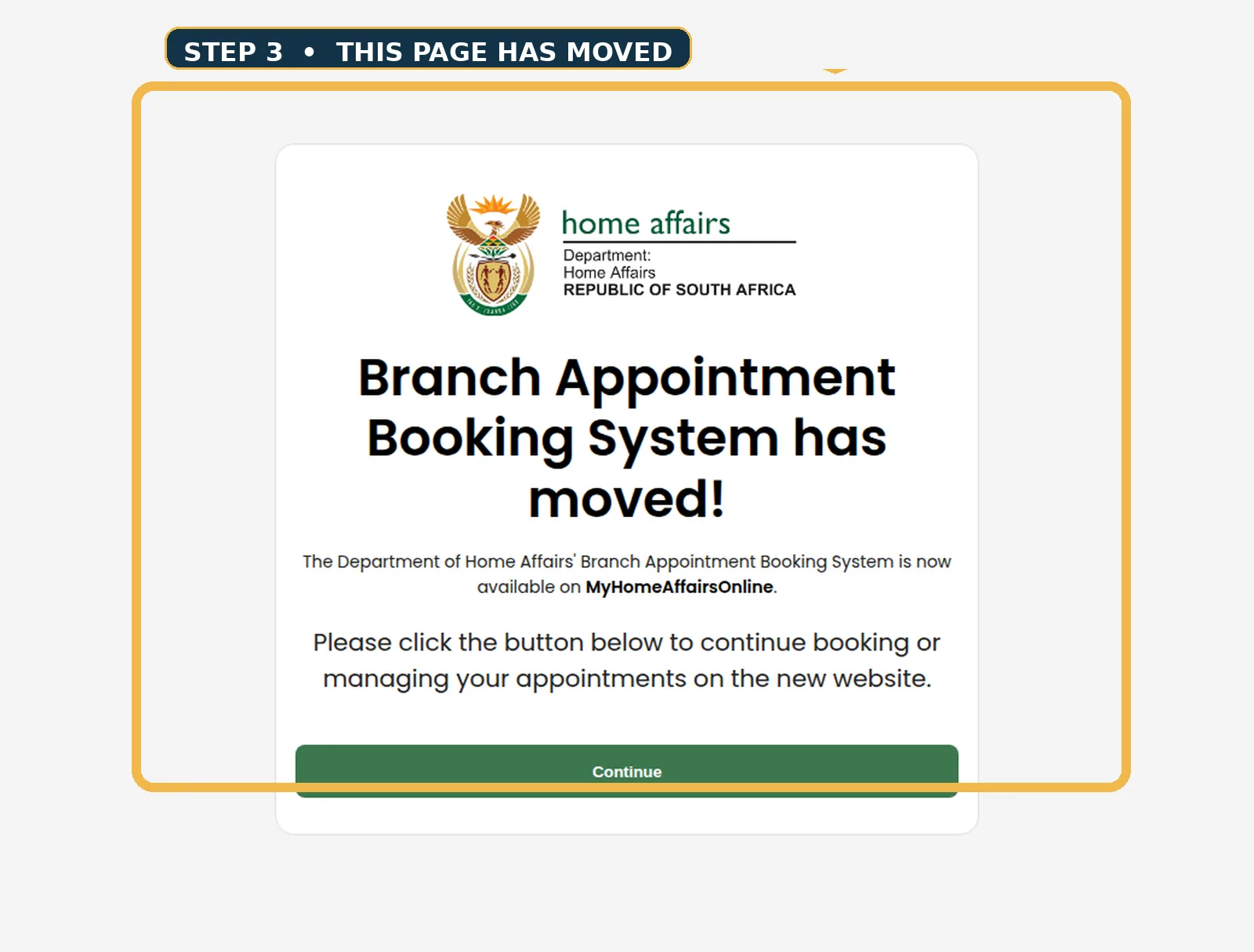
Real public move notice: if an old link sends you to the former booking page, use the move notice to return to My Home Affairs Online. The label and amber outline are guide annotations only.
DHA Branch Appointment Booking System public handoff
Page won’t load, or you may be on the wrong service
If the page will not load, wait, check your connection, try another browser or device, and try again later, never use a copy of the page from another site. If the page loads but your service is not where you expect it, confirm you picked the right service card. The table below shows the services the public page lists, so you can confirm you are starting in the right place.
| Public service card | What the current public page says | Where the official action continues |
|---|---|---|
| Book a DHA Branch Appointment | Book an appointment online for visiting Department of Home Affairs branches. | My Home Affairs Online ↗ |
| Smart ID card through a Partner Branch | Apply for a Smart ID Card re-issue directly through a participating Partner Branch. | Locate a Partner Branch ↗ |
| Reinstatement of Citizenship | Initiate an application through a secure digital process. | Open the public service ↗ |
| Trusted Entity Management | Manage an entity for Electronic Travel Authorisation applicants, subject to applicable immigration requirements. | Open the public service ↗ |
WHAT HAPPENS AFTER THE PUBLIC SCREEN
Once you leave the public screen, the Department’s service takes over
The screenshots above cover the public part of the route, the pages anyone can see. As soon as the service asks you to register, sign in, book, apply, pay or track, you are in the Department’s hands, and that is where those steps stay. You will not find copies of those private screens here, because a copy could be mistaken for the real service.
Recognise before you act
Compare what you see with the card titles and descriptions on this page. When the Department updates its wording, trust the live screen, not an older screenshot.
Your details stay on the official service
Account details, identity information, bookings and payments belong on the service you opened from the Department’s own page, nowhere else.
Keep what the service gives you
Note the confirmation and follow the instructions shown for the task you chose; they come from the Department, not from this guide.
Check the source before you act
For service details, office information, news and updates, go to the Department’s public website directly instead of following forwarded links or forms.
DECIDE YOUR NEXT MOVE
Retry, check, or switch route?
Most booking problems clear with one careful retry. If the same symptom keeps coming back, switch to the branch or contact route instead of retrying all day. Use this decision path.
Retry, try once more, properly
If the page, code or slot list failed once, wait a little, confirm you are on the official page, and try once more. One careful retry fixes most temporary problems.
Check, confirm the basics
Confirm the official address, the right service card, and that you are not on a copied or forwarded page. If anything looks different from this guide, restart from the official source.
Switch, use the branch or contact route
If the same symptom repeats after a careful retry, stop retrying online. Visit a Home Affairs branch or use the Department’s official contact route for your task instead.
Retrying the same failed step all day rarely helps. A careful retry, a quick check, then a switch to the branch or contact route is the safest path.
BEFORE YOU RETRY
Five checks before you try again
Work through these five checks once. They take a minute and prevent the most common repeat failures.
Confirm the official page.
Start from the current My Home Affairs Online page. If the address, card title or layout looks different from this guide, follow the official current wording.
Name the symptom.
Note exactly what went wrong: no slots, no code, sign-in loop, or page not loading. Fix the symptom you actually have.
Try one fix at a time.
Change one thing, retry, clear cache, or try another browser, then test. Changing everything at once hides what worked.
Keep private details private.
Never share a one-time code, password, ID number or booking reference with anyone, including anyone claiming to help you book.
Know when to switch.
If the same symptom repeats after a careful retry, use the branch or contact route instead of retrying all day.
At the point where a process becomes personal or task-specific, the official source must take over. That is why this guide uses large screenshots for the public learning stage and direct links for the private transaction stage.
IF THE PAGE DOES NOT LOOK LIKE THE SCREENSHOTS
If the screen has changed, stop and start again from the official source
Official pages are updated from time to time. When a label, route or instruction on the live page differs from this guide, follow the live page: open My Home Affairs Online directly, or check the Department’s official public website ↗. A page that merely looks like a booking page is not a safe place for personal information.
Use the current official page.
Read the visible service card.
Stay on the Department route.
Anything different on screen means one thing: pause, and restart from the official source.
COMMON READER QUESTIONS
Quick answers before you retry
Step through common questions and get the answers you need.
No appointment slots are showing. What should I do?
Try another date or branch, and retry later, slots open up as offices release them. If nothing appears after a careful retry, use the branch or contact route. Never pay anyone who promises to unlock slots.
My one-time code (OTP) is not arriving. What now?
Wait a few minutes, check the number the Department has on record, and check your messages. Request a new code only on the official page, and never share a code with anyone.
I keep getting sent back to the sign-in screen. How do I fix it?
Clear your browser cache and cookies for the site, try a different browser or device, and sign in again only from the official address. If the loop continues, use the branch or contact route.
The booking page will not load at all. Is the system down?
It may be temporary. Check your connection, try another browser or device, and try again later. Do not use a copied page from another site, always start from the official address.
Can I book an appointment without using the online system?
Yes, if the online route keeps failing, visit a Home Affairs branch or use the Department’s official contact route for your task. The Department’s public website lists branches and contact details.
A website promises to book my slot for a fee. Is it safe?
No. Only the Department’s official service can book appointments. Unofficial sites that promise slots, faster service or guaranteed bookings for a fee are not safe, never share personal details or payment with them.
Official sources used for this guide
My Home Affairs Online ↗ · BABS public handoff ↗ · Department of Home Affairs ↗
HomeAffairsOnlineBooking.com is an independent information guide. It is not affiliated with the Department of Home Affairs or any South African government entity. Verify the current official source before taking action.
USE THE CURRENT OFFICIAL ROUTE
Clear screens, clear boundaries, safer retry
Recognise the route from the screenshots, then do the actual task on the Department’s service. Pages change, cards move and old links break, when anything looks different, begin again from the Department’s current page instead of trusting a saved picture. The guide points the way; the Department’s service is where the work happens.